ip
Penguin Chatbot User Guide
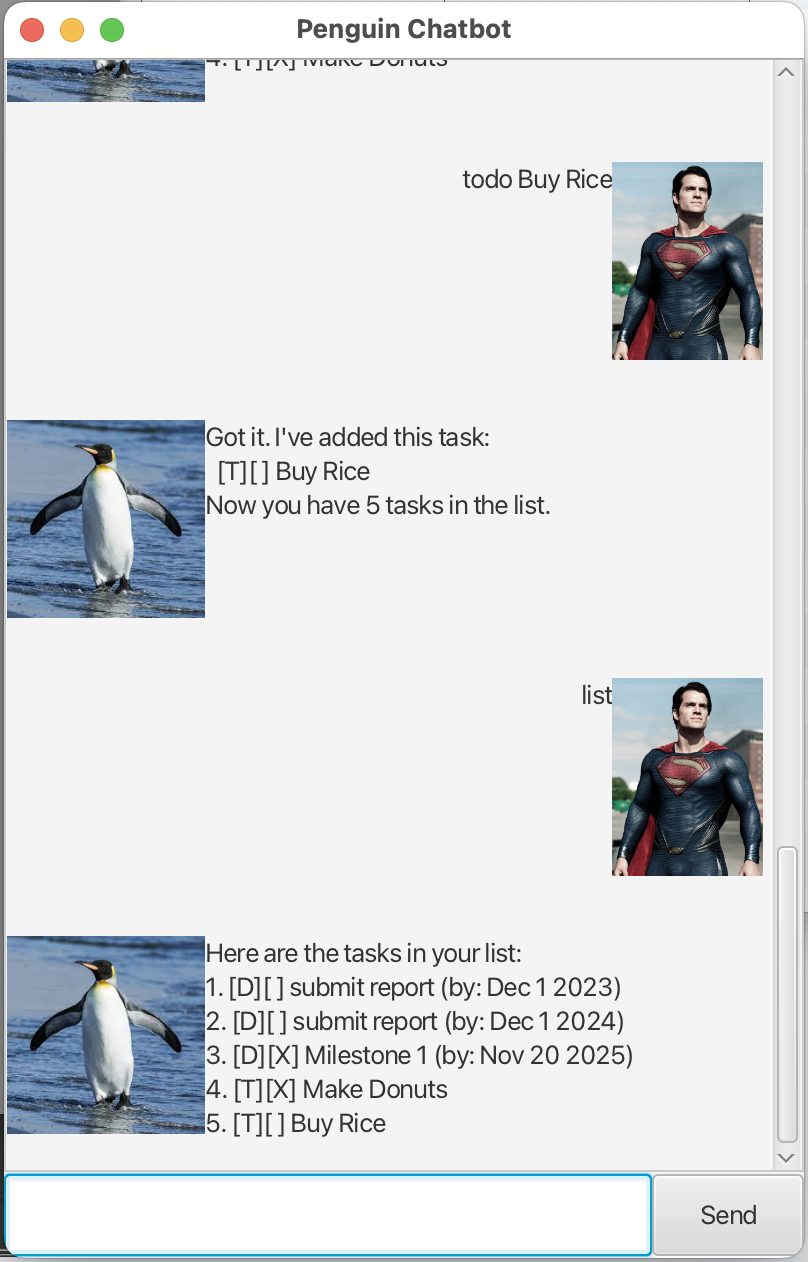
Penguin is a task management chatbot designed to help users organize and track their tasks efficiently. It supports various types of tasks, including todos, deadlines, and events, and provides functionality to add, delete, mark/unmark, list, find, and sort tasks.
Features
Adding Deadlines
To add a deadline task, use the deadline command followed by the task description and the /by keyword with the due date.
Example: deadline submit report /by 2024-12-01
Expected output:
Got it. I've added this task:
  [D][ ] submit report (by: Dec 1 2024)
Now you have X tasks in the list.
Adding Todos
To add a todo task, use the todo command followed by the task description.
Example: todo read book
Expected output:
Got it. I've added this task:
  [T][ ] read book
Now you have X tasks in the list.
Adding Events
To add an event task, use the event command followed by the task description and the /from and /to keywords with the start and end times.
Example: event team meeting /from 2pm /to 4pm
Expected output:
Got it. I've added this task:
  [E][ ] team meeting (from: 2pm to: 4pm)
Now you have X tasks in the list.
Listing Tasks
To list all tasks, use the list command.
Example: list
Expected output:
Here are the tasks in your list:
1. [T][ ] read book
2. [D][ ] submit report (by: Dec 1 2024)
3. [E][ ] team meeting (from: 2pm to: 4pm)
Marking Tasks
To mark a task as done, use the mark command followed by the task number.
Example: mark 1
Expected output:
Nice! I've marked this task as done:
  [T][X] read book
Unmarking Tasks
To unmark a task as not done, use the unmark command followed by the task number.
Example: unmark 1
Expected output:
OK, I've marked this task as not done yet:
  [T][ ] read book
Deleting Tasks
To delete a task, use the delete command followed by the task number.
Example: delete 1
Expected output:
Noted. I've removed this task:
  [T][ ] read book
Now you have X tasks in the list.
Finding Tasks
To find tasks containing a specific keyword, use the find command followed by the keyword.
Example: find book
Expected output:
Here are the matching tasks in your list:
1. [T][ ] read book
Sorting Tasks
To sort tasks by deadline, use the sort command.
Example: sort
Expected output:
Tasks have been sorted! Deadlines are now arranged chronologically (earliest to latest).
Getting Started
To start using Penguin, run the application and follow the prompts to manage your tasks effectively. Enjoy a seamless task management experience with Penguin!